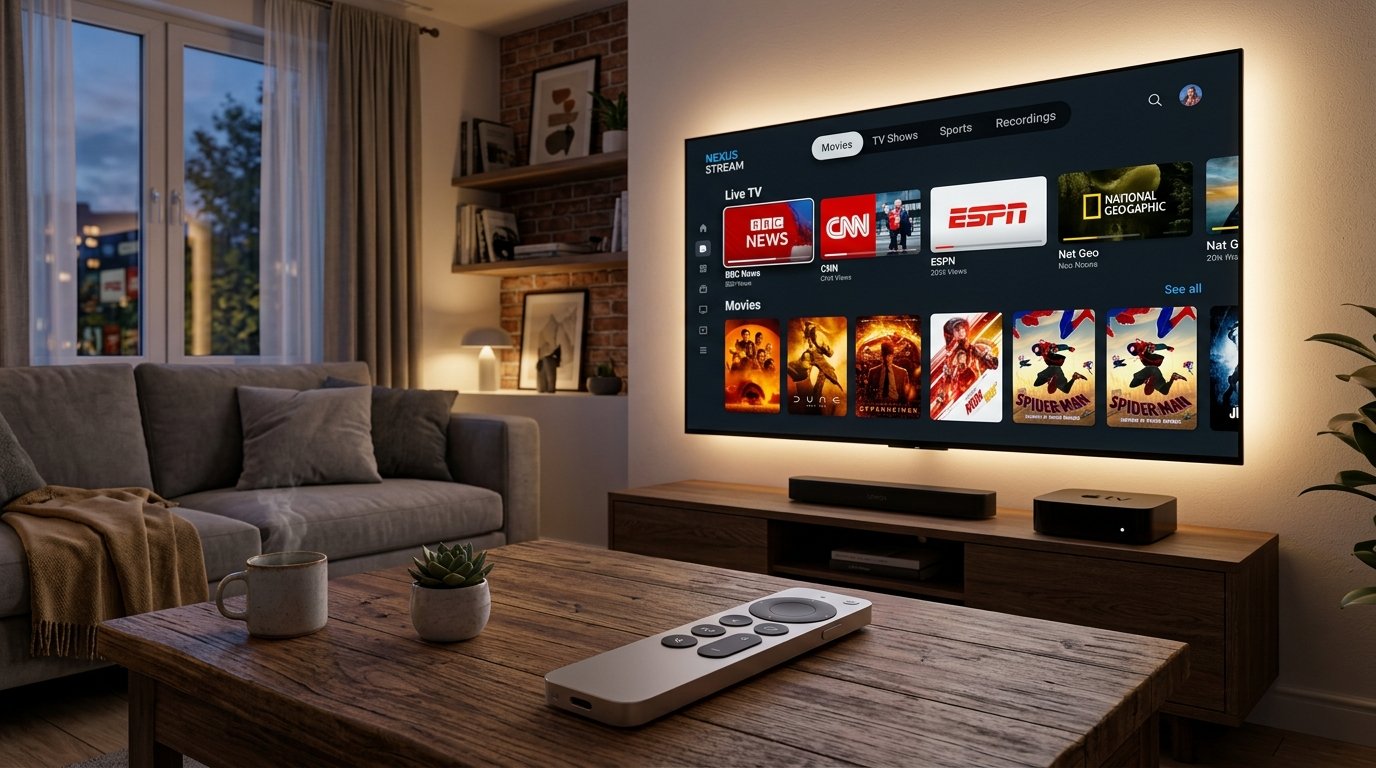
Apple TV makes it easy to bring streaming services and live television to your TV. If you already have an IPTV subscription, you can also use a compatible IPTV player to watch live channels, sports, movies, and TV series directly on Apple TV.
But how does IPTV actually work on Apple TV, and which app should you use?
How Does IPTV Work on Apple TV?
IPTV stands for Internet Protocol Television. Instead of receiving television channels through traditional cable, satellite, or antenna signals, IPTV delivers video content through an internet connection.
The process is simple:
IPTV subscription → IPTV playlist/login → IPTV app → Apple TV → Television
Your IPTV provider gives you access details, usually through an M3U playlist URL or Xtream Codes. You then enter these details into a compatible IPTV player.
The IPTV app connects to the service and displays the available content in categories such as Live TV, Sports, Movies, and Series.
The app itself is normally only a player. It does not automatically provide channels.
Which IPTV Apps Can You Use on Apple TV?
There are several IPTV players available for Apple TV. Availability can change depending on the App Store and tvOS version, so check the current listing before installing.
IPTVX
IPTVX is a popular IPTV player designed for Apple devices, including Apple TV. It provides a modern interface and can organize live channels, movies, series, and other IPTV content.
It is a good option if you want an interface designed specifically for the Apple ecosystem.
GSE Smart IPTV
GSE Smart IPTV is another well-known IPTV player that supports common playlist formats and can be used on compatible Apple devices.
It can be useful if your IPTV provider gives you an M3U playlist or another supported format.
Smarters Player Lite
Smarters Player Lite is another IPTV player that may be available for compatible Apple devices. Depending on the version, it can support IPTV login methods and organize live TV and on-demand content.
Before installing any IPTV application, check its current compatibility with your Apple TV model.
Step-by-Step: How to Set Up IPTV on Apple TV
1. Connect Apple TV to the Internet
Connect Apple TV to your television with HDMI and connect it to your Wi-Fi network or Ethernet connection.
A stable internet connection is important, especially for HD and 4K streaming.
2. Open the App Store
From the Apple TV home screen, open the App Store.
Search for a compatible IPTV player such as IPTVX or another player that supports your IPTV subscription format.
3. Install the IPTV App
Select the application and choose Get or the relevant download option.
Once installation is complete, open the app.
4. Add Your IPTV Subscription
The application will normally ask you to add a playlist or account.
Depending on your IPTV provider, you may be able to use:
- Xtream Codes
- M3U URL
- IPTV playlist
Enter the information exactly as provided by your IPTV service.
5. Load Your Channels
After saving your login details, the app connects to the IPTV service and loads the available content.
You may see categories such as:
- Live TV
- Sports
- Movies
- TV Series
- VOD
- Favorites
- EPG
Select Live TV to browse your channels and start watching.
What Can You Watch With IPTV on Apple TV?
The content depends on your IPTV subscription. Depending on the service, you may have access to live television, sports, news, movies, and TV series.
Some subscriptions also include an EPG (Electronic Program Guide), which shows program information and upcoming broadcasts.
For sports fans, available categories may include football, basketball, hockey, tennis, boxing, and motorsports.
Tips for a Better IPTV Experience
For smoother streaming on Apple TV, use a stable internet connection and keep both Apple TV and your IPTV application updated.
If you experience buffering, restart your router and Apple TV and test another channel. If only certain channels have problems, the issue may be related to those particular streams.
For 4K content, a strong and stable connection is especially important.
Final Thoughts
Setting up IPTV on Apple TV is relatively simple. You need an Apple TV connected to the internet, a compatible IPTV player, and an active IPTV subscription.
Apps such as IPTVX, GSE Smart IPTV, and Smarters Player Lite can provide different ways to organize and watch your IPTV content. Choose an app that supports the playlist or login method supplied by your IPTV provider.
Once your subscription is added, you can access your available live TV, sports, movies, and series directly from your Apple TV.
Instant activation • No contracts • 7-day money back guarantee